MLAT
Multilateration is on by default, so your feeder helps position aircraft that don’t broadcast their own. Privacy is on too: you’re off the public MLAT map unless you choose otherwise.

Forty-five seconds, start to finish.
After that it runs from the notification area and starts with Windows, so your PC feeds whenever it’s on.
Download and run the installer. Windows may show “Windows protected your PC” while it gets to know us as a new publisher: check that the publisher is JETNET, L.L.C., then choose More info, then Run anyway. The installer asks for administrator permission once, because it installs for everyone on the PC. Leave Open ADS-B Exchange Feeder ticked on the last page. From then on the app starts with Windows in the notification area.
Connect the antenna and plug the SDR into a USB port. The first time, Windows asks for permission to install the stick’s driver: choose Yes. Feeding starts by itself.
In Settings, enter your latitude, longitude and antenna altitude, which MLAT needs. Use https://www.freemaptools.com/elevation-finder.htm to find your elevation.
The Status tab shows Feeding and the Live feed card. Then check your feeder page:
The Desktop Feeder should work with any ADS-B capable RTL-SDR stick (the common RTL2832U kind), and it installs the Windows driver for you. So far it has only been tested with the three sticks below. If yours works, or doesn’t, please tell us on Discord.
For the best results, use a stick built for aircraft. The ADS-B Exchange stick has a 1090 MHz filter and amplifier inside, and in our side-by-side test it heard about four times as many messages and reached about four times as far as general-purpose sticks on the same antenna. The general-purpose sticks are good receivers that cover a wide range of frequencies; they simply have no 1090 MHz filter or amplifier. Already have an RTL-SDR? Plug it in and start feeding; you can always upgrade later.
| In our test |
Nooelec NESDR SMArt v5 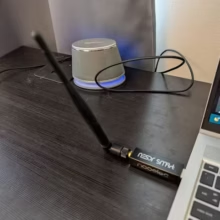
|
Nooelec NESDR Nano 3 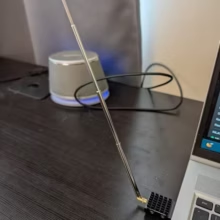
|
Nooelec SMArt v5 + SAWbird+ 1090 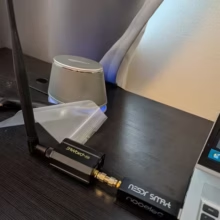
|
ADS-B Exchange stick 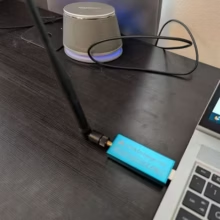
|
|---|---|---|---|---|
| Built for ADS-B | General purpose | General purpose | General purpose plus a filtered amplifier, with its own power lead | Yes: 1090 MHz filter and amplifier |
| Messages heard per minute | 848 | 518 | 2,238 | 3,213 |
| Aircraft heard (with a position) | 5.3 (4.6) | 4.8 (3.3) | 15.7 (14.0) | 17.4 (14.8) |
| Typical range | 35 nm | 24 nm | 136 nm | 133 nm |
| Best range | 54 nm | 41 nm | 164 nm | 153 nm |
| Signal above noise | 13 dB | 11 dB | 16.6 dB | 15 dB |
| Driver set up by the feeder | Yes | Yes | Yes | Yes |
| Antenna in the box | No | No | No | No |
| Where to buy | Nooelec | Nooelec | Nooelec (stick) and Nooelec (SAWbird+ ADS-B, the current model) | ADS-B Exchange store |
One laptop indoors, one afternoon, Auto gain, each stick on the same USB port in turn. The Nooelec sticks shared one Nooelec antenna; the ADS-B Exchange stick was measured on its own antenna, and did as well or slightly better on the Nooelec one, so the antenna isn’t what separates them. Air traffic changes minute to minute, so treat the aircraft counts as rough; messages per minute and range are the better comparison.
None of these sticks comes with an antenna. You’ll need a 1090 MHz antenna of your own: anything with an SMA plug connects straight to any of them.
Using a general-purpose stick? A 1090 MHz filtered amplifier at the antenna should close much of the gap. The Desktop Feeder can power one through the antenna cable with its bias tee setting. We haven’t tested that combination yet.
Multilateration is on by default, so your feeder helps position aircraft that don’t broadcast their own. Privacy is on too: you’re off the public MLAT map unless you choose otherwise.
The same statistics our feeder kits send, so your feeder page, aircraft counts, range and uptime fill in, and you appear on the leaderboard.
A notification if the feed can’t reach ADS-B Exchange for 15 minutes or hears nothing for two hours. It clears itself once things recover.
Nothing stops a Mac app, and it’s on our list. We started with Windows because it’s where most people without a Raspberry Pi are, and because Windows needed the most help with SDR drivers. In the meantime, a Mac can feed the same way a Linux PC does: run readsb with the feed client, and ask on Discord if you get stuck.