Feed from Your Android Phone Beta

No Raspberry Pi. No flashing. Plug an RTL-SDR into a phone you already own.

Our free Android app runs the receiver software for you, sets the location from GPS, and feeds MLAT and stats to ADS-B Exchange. It’s in public beta: it works, it’s still being polished, and we’d like to hear how it goes on your phone.

The Android Phone Feeder

Best for:

  • Putting a spare or older phone to work (Android 7.0 and up)
  • A phone by the window: the receiver position comes from the phone’s GPS, nothing to type
  • The cheapest route to a feeder: a phone you already own, an SDR and an adapter

Plug the SDR in and the app opens and starts feeding. No root, no Termux, no driver app. It sets the receiver position from the phone’s GPS, takes part in MLAT, sends the stats behind your feeder page, and pauses itself if the phone gets hot, runs low on battery or drops onto mobile data.

Beta. The Phone Feeder is new. It has fed ADS-B Exchange around the clock on our own phones, but it has only been tried on a handful of models so far, so expect the odd rough edge. If something doesn’t work, tell us on Discord and we’ll fix it.

  • What You’ll Need

    • An Android phone running Android 7.0 or later that supports USB host (OTG). Most phones from the last few years do.
    • An RTL-SDR USB receiver (1090 MHz): this one on Amazon
    • A 1090 MHz antenna with an SMA plug: 1090 MHz antennas on Amazon
    • A USB-C hub with charging (“power delivery pass-through”), such as this one on Amazon, and a wall adapter
  • The Recommended Setup

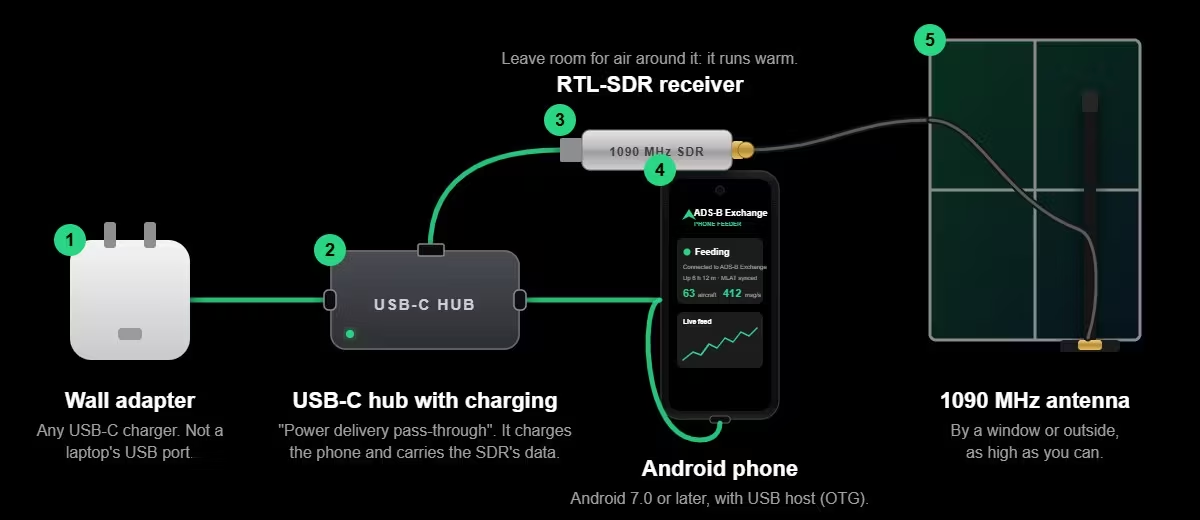
    A phone has one USB-C port, and the SDR needs it. To feed around the clock, the phone has to charge at the same time, so the SDR and the charger both go into a USB-C hub with charging, and the hub goes into the phone. The app checks that the phone is actually charging and warns you if it isn’t.

    1. Plug the wall adapter into the hub’s charging port. Use a wall adapter, not a laptop’s USB port, which can’t power the phone and the SDR reliably.
    2. Plug the SDR into the hub.
    3. Plug the hub into the phone.
    4. Connect the antenna to the SDR and put it by a window or outside, as high as you can.

    SDRs run warm. Leave room for air around the SDR and the hub, for example by raising the phone a few millimetres off the surface.

    The alternative: a wireless charger

    If your phone charges wirelessly, you can skip the hub: put the phone on a wireless charger that is plugged into a wall adapter, and plug the SDR straight into the USB-C port through a USB-C OTG adapter. Check the phone sits centred on the charger, and give it some airflow.

  • Step 1 — Install the App

    Install ADS-B Exchange Phone Feeder from Google Play and open it. Setup is one screen: it lists what you need, lets you name your feeder, and asks for the permissions it uses (USB, location for the receiver position, and notifications for alerts).

  • Step 2 — Plug in the SDR

    Plug the wall adapter and the SDR into the hub, the hub into the phone, and the antenna onto the SDR (see the recommended setup above). When Android asks to open the app, tick Always and tap OK, so feeding starts by itself whenever the SDR is plugged in, after a reboot, or after an update.

  • Step 3 — Confirm Your Location

    The app averages GPS fixes for about a minute and saves the receiver position, which MLAT needs. You can also enter it by hand. Confirm that the antenna is near the phone (within about 15 metres).

  • Step 4 — Verify Your Feed

    The Status screen shows Feeding once the connection is up, and the Live feed card shows messages per second, aircraft seen and your maximum range. Then check your feeder page:

  • Keeping It Running

    • Power: use a USB-C hub with charging, or a wireless charger on a wall adapter. A laptop’s USB port can’t power one reliably.
    • Heat and battery: feeding pauses by itself if the phone gets hot or the battery is low and not charging, and resumes once it recovers.
    • Mobile data: feeding pauses if the phone falls back to mobile data, so a lost Wi-Fi connection won’t eat your plan. You can allow it in Settings.
    • Alerts: one notification if the feed can’t reach ADS-B Exchange for 15 minutes, or the phone stops charging while it’s on a charger.

Built In

MLAT

Multilateration is on by default, so your feeder helps position aircraft that don’t broadcast their own. Privacy is on too: you’re off the public MLAT map unless you choose otherwise.

Stats & Leaderboard

The same statistics our feeder kits send, so your feeder page, aircraft counts, range and uptime fill in, and you appear on the leaderboard.

Alerts

A notification if the feed can’t reach ADS-B Exchange for 15 minutes or hears nothing for two hours. It clears itself once things recover.

Got a Windows PC Instead?

The same feeder, as a Windows app:

  • One installer, signed by JETNET
  • The SDR driver installed for you
  • Starts with Windows and feeds from the notification area

Prefer Dedicated Hardware?

A Raspberry Pi or turnkey kit can run around the clock on a few watts:

  • Connect a receiver you already run
  • Build your own from our Pi image
  • Buy a preconfigured kit
  • Why isn’t there an iPhone version?

    We can’t build one yet. iOS doesn’t let an app talk to a USB device like an RTL-SDR: there is no general USB host API for third-party apps on the iPhone, and only Apple-approved accessories get through. The receiver software also has to run for hours on end in the background, which iOS doesn’t allow an app to do. If Apple opens either door, we’ll be there. (iPad has a driver framework, but it needs Apple’s sign-off for each device, which hobby SDRs don’t have.)

    In the meantime, a spare Android phone is cheap, and a Windows PC works too.

Need Help?

Join our Discord community for:

  • Setup help
  • Which phones and SDRs work
  • MLAT troubleshooting
  • Antenna optimization advice